1. Install Package
Add flutter_media_session to your Flutter dependencies using the command line or editing pubspec.yaml.
Add Dependency
Add flutter_media_session to your Flutter project using the command line:
flutter pub add flutter_media_sessionOr manually add it to your pubspec.yaml under dependencies:
dependencies:
  flutter:
    sdk: flutter
  flutter_media_session: ^3.1.0
Then run flutter pub get to install the package.
2. Select Target Platforms
Choose all platforms your app supports. Configure each selected platform and mark it complete when ready.
Android Setup
flutter_media_session uses AndroidX Media3 under the hood.
Zero Initial Configuration
For standard audio apps, Android requires no code changes or manifest edits before running:
- Permissions: When you call
activate(), the plugin automatically requests thePOST_NOTIFICATIONSruntime permission on Android 13+ (API 33+). - Foreground Service: The media playback foreground service is automatically registered and managed.
final session = FlutterMediaSession();
await session.activate();
Stripping Connected Device Permission (Optional)
By default, the plugin declares FOREGROUND_SERVICE_CONNECTED_DEVICE for cast/remote device control. If you strip this permission, Android 14+ requires overriding the service in AndroidManifest.xml:
<!-- android/app/src/main/AndroidManifest.xml -->
<manifest xmlns:android="http://schemas.android.com/apk/res/android"
    xmlns:tools="http://schemas.android.com/tools">

    <uses-permission
        android:name="android.permission.FOREGROUND_SERVICE_CONNECTED_DEVICE"
        tools:node="remove" />

    <application ...>
        <service
            android:name="dev.wyrin.flutter_media_session.FlutterMediaSessionService"
            android:foregroundServiceType="mediaPlayback"
            tools:replace="android:foregroundServiceType" />
    </application>
</manifest>
Custom notification buttons and drawable icons can be configured in Step 3 (Action Slot Layout & Custom Actions).
2. Bind Player Adapter
Select your playback engine to inspect adapter parameters, setup code, and two-way sync.
Just Audio Adapter
The JustAudioMediaSessionAdapter synchronizes just_audio [AudioPlayer] with FlutterMediaSession.
Constructor Parameters
| Parameter | Type | Required? | Default | Description |
|---|---|---|---|---|
player |
AudioPlayer |
Yes | — | The active just_audio player instance. |
metadataMapper |
MediaMetadata Function(AudioPlayer)? |
No | null |
Custom resolver for metadata from player or current item tag. |
manageLifecycle |
bool |
No | false |
When true, automatically activates the session on bind. |
Setup & Binding
import 'package:flutter_media_session/flutter_media_session.dart';
import 'package:just_audio/just_audio.dart';
final player = AudioPlayer();
final session = FlutterMediaSession();
// Create adapter (manageLifecycle: true automatically calls session.activate() on bind)
final adapter = JustAudioMediaSessionAdapter(
player,
manageLifecycle: true,
);
session.bind(adapter);Remote Transport Commands
When bound, the adapter automatically listens to system media commands (play, pause, stop, seekTo, skipToNext, skipToPrevious, repeat, shuffle) and controls AudioPlayer.
Custom Actions or Additional Command Interception
If you have custom actions (e.g. favorite) or want to intercept additional commands alongside just_audio:
// You can listen to custom actions via the platform action stream:
FlutterMediaSessionPlatform.instance.onMediaAction.listen((action) {
if (action.name == 'favorite') {
// Handle like / favorite toggle
}
});4. Extra Features & Controls
Select and configure additional capabilities. Each feature lists supported platforms and all Dart API parameters.
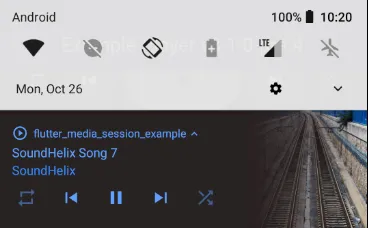
Action Slot Layout
Customizes the order and placement of media buttons on Android notifications and compact lock screen views.
Methods & Constructors
FlutterMediaSessionPlatform.instance.setActionLayout(ActionSlotLayout layout)
ActionSlotLayout.symmetrical
| Parameter | Type | Required? | Default | Description |
|---|---|---|---|---|
left |
MediaAction? |
No | null |
Custom action or feature placed on far left (slot 0). |
skipPrevious |
MediaAction |
No | MediaAction.skipToPrevious |
Previous track button. |
playPause |
MediaAction |
No | MediaAction.play |
Center toggle button. |
skipNext |
MediaAction |
No | MediaAction.skipToNext |
Next track button. |
right |
MediaAction? |
No | null |
Custom action or feature placed on far right (slot 4). |
compactActionIndices |
List<int>? |
No | [1, 2, 3] |
Up to 3 slot indices shown in collapsed notification. |
await FlutterMediaSessionPlatform.instance.setActionLayout(
ActionSlotLayout.symmetrical(
left: MediaAction.custom(name: 'favorite', customLabel: 'Like', customIconResource: 'ic_heart'),
right: MediaAction.repeat,
),
);
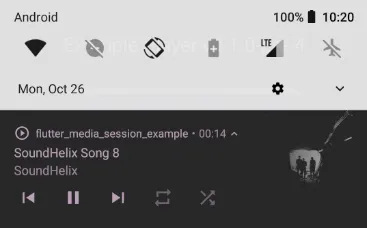
ActionSlotLayout.sequential
| Parameter | Type | Required? | Default | Description |
|---|---|---|---|---|
skipPrevious |
MediaAction |
No | MediaAction.skipToPrevious |
Previous track button. |
playPause |
MediaAction |
No | MediaAction.play |
Center toggle button. |
skipNext |
MediaAction |
No | MediaAction.skipToNext |
Next track button. |
custom1 |
MediaAction? |
No | null |
4th slot button. |
custom2 |
MediaAction? |
No | null |
5th slot button. |
compactActionIndices |
List<int>? |
No | [0, 1, 2] |
Up to 3 slot indices for compact view. |
ActionSlotLayout(slots, {compactActionIndices})
| Parameter | Type | Required? | Default | Description |
|---|---|---|---|---|
slots |
List<MediaAction> |
Yes | — | Explicit list of up to 5 action slots. |
compactActionIndices |
List<int>? |
No | null |
Explicit 0-based indices for compact mode (max 3). |
Custom Actions & Drawable Icons (Android)
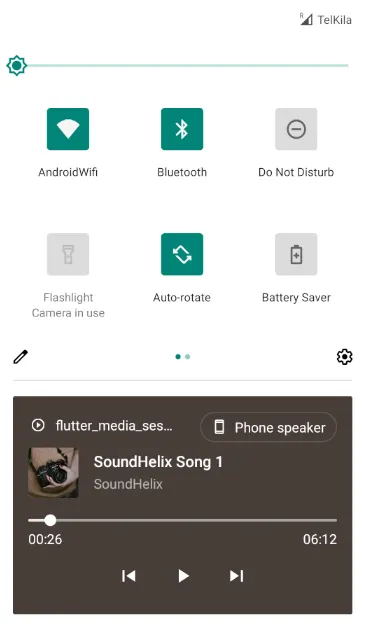
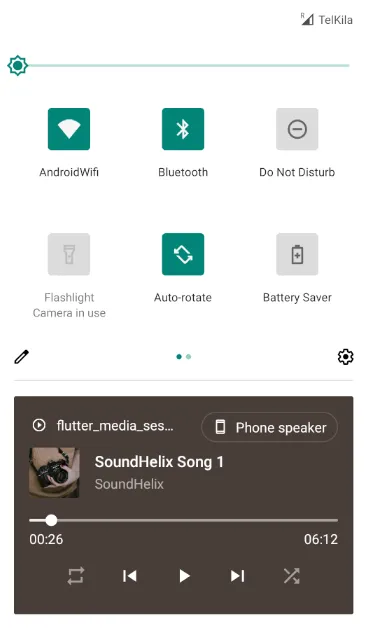
Android notifications allow up to 5 buttons in expanded view. You can define custom buttons using MediaAction.custom:
final favoriteAction = MediaAction.custom(
name: 'favorite',
customLabel: 'Favorite',
customIconResource: 'ic_heart', // Name of drawable resource without extension
);
Resource Placement
Place custom vector or PNG icons in your Android app module:
- Path:
android/app/src/main/res/drawable/ic_heart.xml(or.png) - In Dart, pass only the resource name
'ic_heart'(omit directory and.xml/.pngextension).
Background Keep-Alive
Prevents OS sleep and network throttling while streaming audio in the background or off-device casting.
Method Signature
FlutterMediaSessionPlatform.instance.setBackgroundKeepAlive(bool enabled)
| Parameter | Type | Required? | Default | Description |
|---|---|---|---|---|
enabled |
bool |
Yes | — | true to acquire wake lock and high-perf WiFi mode; false to release. |
// Enable wake locks and WiFi high-performance mode
await FlutterMediaSessionPlatform.instance.setBackgroundKeepAlive(true);
// Release wake locks when playback stops
await FlutterMediaSessionPlatform.instance.setBackgroundKeepAlive(false);Platform Behaviors
- Android: Acquires
PARTIAL_WAKE_LOCK+WIFI_MODE_FULL_HIGH_PERF. Requiresandroid.permission.WAKE_LOCK. - Web: Calls
navigator.wakeLock.request('screen'). Revokes automatically if tab is hidden. - iOS / macOS / Windows: Managed via audio session background mode (no-op).
Skip & Rewind Intervals
Customizes the skip backward and skip forward step durations on lock screen remote command centers.
Method Signature
FlutterMediaSessionPlatform.instance.setSkipIntervals({int forwardSeconds = 10, int backwardSeconds = 10})
| Parameter | Type | Required? | Default | Description |
|---|---|---|---|---|
forwardSeconds |
int |
No | 10 |
Fast-forward duration in seconds. |
backwardSeconds |
int |
No | 10 |
Rewind duration in seconds. |
await FlutterMediaSessionPlatform.instance.setSkipIntervals(
forwardSeconds: 30,
backwardSeconds: 15,
);Supported natively on iOS and macOS (MPRemoteCommandCenter), and Web (MediaSession).
Audio Interruptions
Configures whether the plugin automatically manages OS audio focus changes (e.g. phone calls, GPS prompts).
Method Signature
FlutterMediaSessionPlatform.instance.setAutoHandleInterruptions(bool enabled)
| Parameter | Type | Required? | Default | Description |
|---|---|---|---|---|
enabled |
bool |
Yes | — | true to let the plugin handle focus and emit pause/play events; false to disable. |
await FlutterMediaSessionPlatform.instance.setAutoHandleInterruptions(true);Important: Leave
enabled: falseif your player engine already manages audio focus (such asjust_audiowithAudioSessionormedia_kit). Turn this on for bare video or audio decoders without built-in focus management.
Available Actions
Explicitly restricts or declares which actions are enabled in system controls. By default (null), all supported actions are enabled.
Method Signature
FlutterMediaSessionPlatform.instance.updateAvailableActions(Set<MediaAction>? actions)
| Parameter | Type | Required? | Default | Description |
|---|---|---|---|---|
actions |
Set<MediaAction>? |
No | null |
Allowed set of actions. Pass null to enable all actions (default). |
Standard Media Actions List
MediaAction provides 10 built-in standard actions:
| Static Constant | Name String | Description |
|---|---|---|
MediaAction.play |
'play' |
Resume playback |
MediaAction.pause |
'pause' |
Pause playback |
MediaAction.stop |
'stop' |
Stop playback |
MediaAction.skipToNext |
'skipToNext' |
Skip to next track |
MediaAction.skipToPrevious |
'skipToPrevious' |
Skip to previous track |
MediaAction.seekTo |
'seekTo' |
Scrub/seek to a specific position |
MediaAction.rewind |
'rewind' |
Rewind by standard interval (e.g. 10s/15s) |
MediaAction.fastForward |
'fastForward' |
Fast-forward by standard interval (e.g. 10s/30s) |
MediaAction.shuffle |
'shuffle' |
Toggle shuffle mode |
MediaAction.repeat |
'repeat' |
Toggle repeat mode |
Custom Actions (Android)
You can also create custom actions using MediaAction.custom:
final favoriteAction = MediaAction.custom(
name: 'favorite',
customLabel: 'Favorite',
customIconResource: 'ic_heart', // Located in android/app/src/main/res/drawable/
);Usage Example
// Whitelist specific controls (e.g. for a podcast player with seek & intervals)
await FlutterMediaSessionPlatform.instance.updateAvailableActions({
MediaAction.play,
MediaAction.pause,
MediaAction.stop,
MediaAction.rewind,
MediaAction.fastForward,
MediaAction.seekTo,
});
// Reset to enable all supported actions
await FlutterMediaSessionPlatform.instance.updateAvailableActions(null);Actions omitted from the set are either hidden or disabled in the system notification shade, lock screen, and SMTC.
Session Lifecycle
Controls starting, stopping, and releasing the platform media controls and background services.
Methods
FlutterMediaSession().activate()
Initializes platform media controls, registers foreground service on Android (auto-requesting POST_NOTIFICATIONS permission if needed), and binds to OS media hubs (Now Playing / SMTC / MediaSession API).
final session = FlutterMediaSession();
await session.activate();FlutterMediaSession().deactivate()
Removes OS notifications, stops foreground services, releases wake locks, and removes transport controls from the OS lock screen.
await session.deactivate();Adapter Lifecycles: When using an adapter with
manageLifecycle: true, the adapter automatically activates the session when bound and deactivates it when unbound.
Windows AUMID Identity
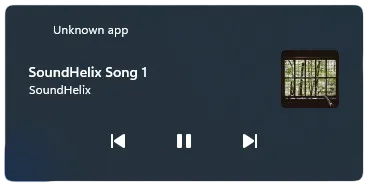
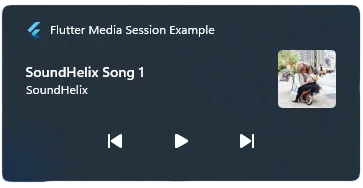
Windows SMTC identifies applications using an Application User Model ID (AUMID) to display your app's title and icon instead of "Unknown Application".
1. Unpackaged / Portable Distribution (.zip / Portable EXE)
For portable distributions or development builds without an installer, call setWindowsAppUserModelId before activating:
import 'dart:io';
import 'package:flutter/material.dart';
import 'package:flutter_media_session/flutter_media_session.dart';

Future<void> main() async {
  WidgetsFlutterBinding.ensureInitialized();

  if (Platform.isWindows) {
    // Call early before activating media sessions
    await FlutterMediaSession().setWindowsAppUserModelId(
      'Com.Company.MyApp',
      displayName: 'My Media Player', // Creates Start Menu shortcut required by SMTC
      iconPath: r'C:\path\to\icon.ico', // Optional icon path
    );
  }

  runApp(const MyApp());
}
Parameters
| Parameter | Type | Required? | Default | Description |
|---|---|---|---|---|
id |
String |
Yes | — | Unique identifier string (e.g. Com.Company.MyApp). |
displayName |
String? |
No | null |
Display name for dynamic Start Menu shortcut. Omit if using an installer (InnoSetup, MSIX) that already creates shortcuts. |
iconPath |
String? |
No | null |
Optional absolute path to .ico file for the shortcut icon. |
2. Packaged MSIX Distribution
When packaging via MSIX (e.g. using msix:create), Windows automatically assigns the AUMID from your package identity:
# pubspec.yaml
msix_config:
  display_name: My Media Player
  publisher_display_name: My Company
  identity_name: com.mycompany.mymediaplayer
  msix_version: 1.0.0.0
  logo_path: windows/runner/resources/app_icon.ico
Note: Inside an MSIX container,
flutter_media_sessiondetects package identity automatically and bypasses manual shortcut generation.